Connections
The Connections pages configure external network services that the Genius Gateway can integrate with, including MQTT for smart home integration and NTP for accurate time synchronization.
MQTT
MQTT (Message Queuing Telemetry Transport) is a lightweight messaging protocol ideal for IoT devices and smart home integration. The Genius Gateway can publish device states and alarm events to an MQTT broker for integration with home automation systems like Home Assistant.
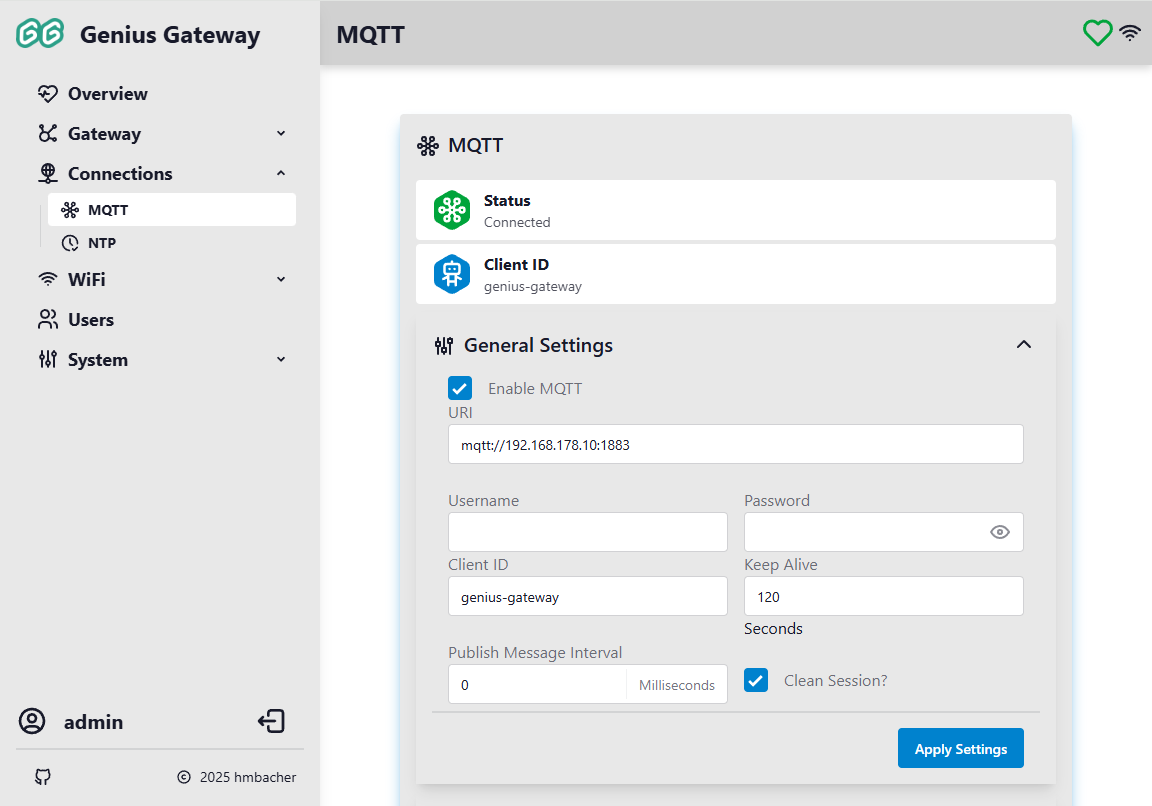
MQTT Status
The MQTT status section displays self-explaning real-time connection information.
General Settings
Click the General Settings collapsible section to configure MQTT connection parameters.
Administrator Access Required
MQTT settings can only be modified by users with administrator privileges.
Connection Settings
Enable MQTT
Toggle to enable or disable MQTT functionality. When disabled, no MQTT connections or publishing occur.
URI
The MQTT broker URI is composed of three separate fields: a Protocol dropdown, a Host input (hostname or IPv4 address), and a Port input. The fields are validated independently and assembled into a <protocol>://<host>:<port> URI behind the scenes.
Supported protocols and their default ports:
mqtt://- unencrypted MQTT over TCP, default port 1883mqtts://- MQTT over TLS/SSL, default port 8883ws://- MQTT over unencrypted WebSocket, default port 80wss://- MQTT over WebSocket Secure (TLS), default port 443
Automatic Port Updates
Switching the protocol updates the port field to the new protocol's default - but only if the current port still matches the previous protocol's default. Custom ports you have set are preserved across protocol changes.
Username
Optional username for MQTT broker authentication. Leave empty if the broker doesn't require authentication.
Password
Optional password for MQTT broker authentication. Leave empty if the broker doesn't require authentication.
Password Storage
Passwords are stored unencrypted in the device's file system. Ensure physical access to the device is restricted.
Client ID
Unique identifier for this MQTT client. Each device connecting to the same broker must have a unique client ID.
Keep Alive
MQTT keep-alive interval in seconds (1-600). The device sends a ping to the broker if no other messages are sent within this interval to maintain the connection.
Publish Message Interval
Minimum interval between published MQTT messages in milliseconds (0-1000).
Disable Rate Limiting
0 = no rate limiting. Messages will be sent immediately.
This rate limiting may be used to prevent overwhelming the broker with rapid updates, if necessary.
Clean Session
When enabled, the broker discards all information about previous sessions when the client connects.
- Enabled (checked): Start with a clean slate, no retained messages or subscriptions
- Disabled (unchecked): Resume previous session with retained messages and subscriptions
Session Persistence
Genius Gateway does not rely on the MQTT broker's persistence function, as it publishes the state of all smoke detectors to the broker on every reconnect.
It is therefore recommended to enable this feature to ensure a consistent state and stable connection at all times.
Applying Changes
Click Apply Settings to save and apply the MQTT configuration. The device will reconnect to the MQTT broker with the new settings.
Home Assistant Integration
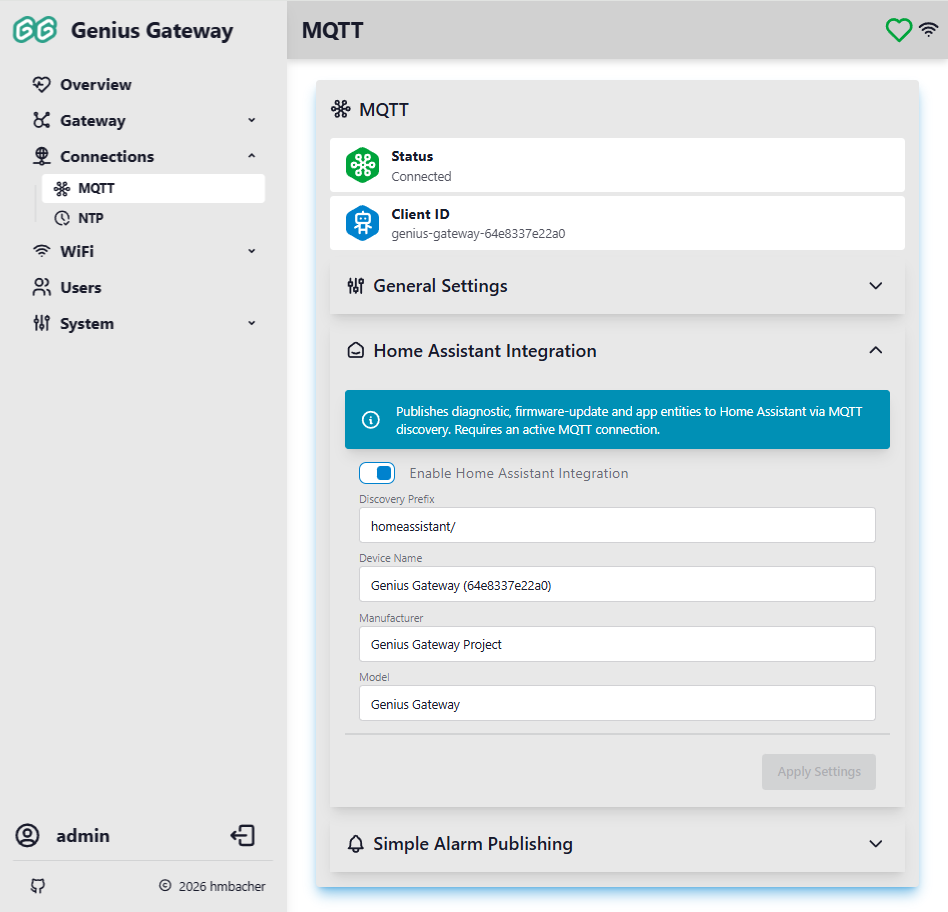
The Home Assistant Integration collapsible card enables MQTT Discovery and configures the gateway's device identity in Home Assistant.
Administrator Access Required
Home Assistant settings can only be modified by users with administrator privileges.
Enable Home Assistant Integration
Toggle to enable/disable publishing with MQTT Discovery support for:
- Gateway device with diagnostic sensors and remote controls
- Individual detector configurations and states
- Alarm line controls (if configured)
Disabling removes the device from Home Assistant
When this toggle is turned off while MQTT is connected, the gateway immediately sends empty retained payloads to all discovery topics, causing Home Assistant to remove the gateway device and all its entities. Re-enabling will re-register everything on the next save.
Discovery Prefix
Home Assistant MQTT Discovery prefix. All device discovery messages will use this prefix followed by the component type (e.g., binary_sensor, button, sensor). Default: homeassistant/.
Example: Using the default prefix creates discovery topics like:
homeassistant/binary_sensor/genius-gateway-<id>/…/config(smoke detector)homeassistant/button/genius-gateway-<id>/…/config(alarm line button)
Home Assistant compatibility
The prefix must match the discovery_prefix configured in your Home Assistant instance.
Device Name
Name shown in Home Assistant's device registry. The factory default is Genius Gateway <last 6 MAC digits> (e.g. Genius Gateway aabbcc), so multiple units on the same network are distinguishable without any manual configuration.
Manufacturer / Model
Optional labels shown in the Home Assistant device info panel. Useful for multi-gateway deployments to distinguish individual units.
Build-time Model Customization
If -D HW_VERSION=\"...\" is set in the build flags, it is automatically appended to the model default (e.g. Genius Gateway v1.0).
Applying Changes
Click Apply Settings to save. Changes take effect immediately - if MQTT is connected, updated discovery messages are published automatically. Disabling the integration removes the device from Home Assistant immediately (see warning above).
MQTT Topics Reference
See Home Assistant Auto-Discovery for topic structure and payload formats.
Related Documentation
Integration with Home Assistant is described in detail in Smart Home Integration.
Simple Alarm Publishing
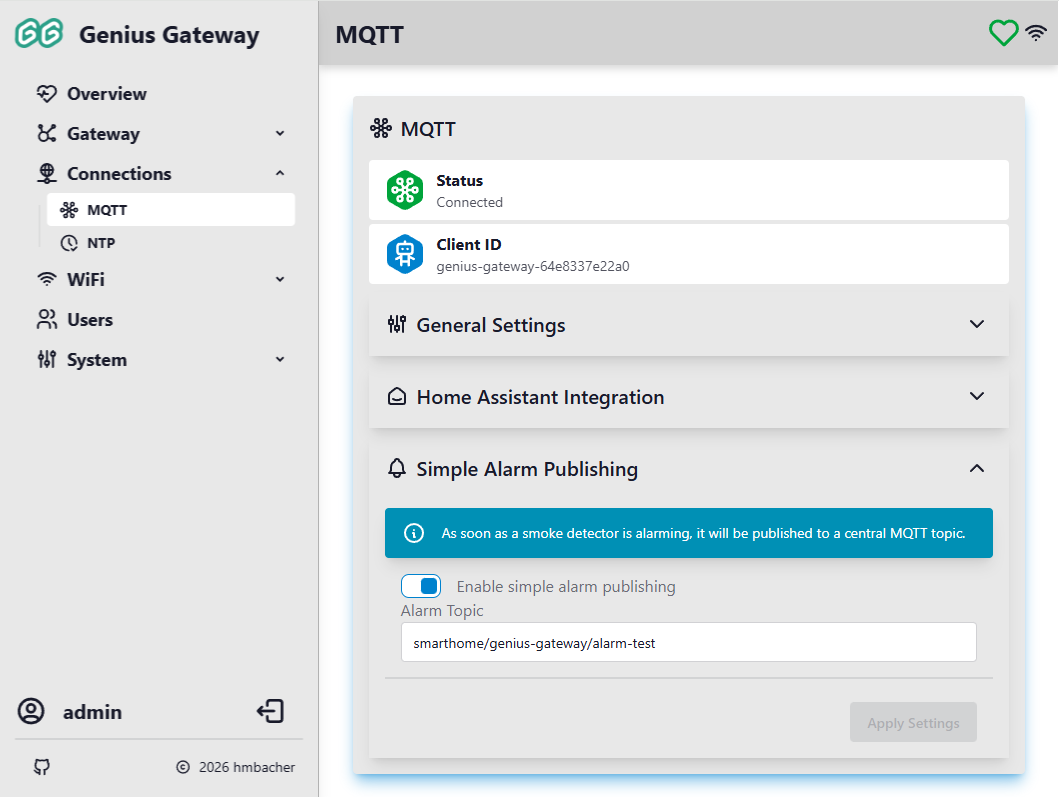
The Simple Alarm Publishing collapsible card configures a simple, platform-agnostic alarm notification via MQTT.
Administrator Access Required
Smart home integration settings can only be modified by users with administrator privileges.
Enable simple alarm publishing
Toggle to enable/disable publishing alarm events to a central topic.
Alarm Topic
MQTT topic where alarm state is published when any smoke detector triggers an alarm.
Valid MQTT Topic Syntax
- 1-64 characters
- no wildcards
+or# - cannot start or end with
/ - no double slashes
// - no special characters except
/,-, and_
Global Alarm State Topic
See Global Alarm State Topic for the exact payload format.
Network Time (NTP)
Network Time Protocol (NTP) synchronizes the device's internal clock with internet time servers, ensuring accurate timestamps for logs, alarms, and event recording.
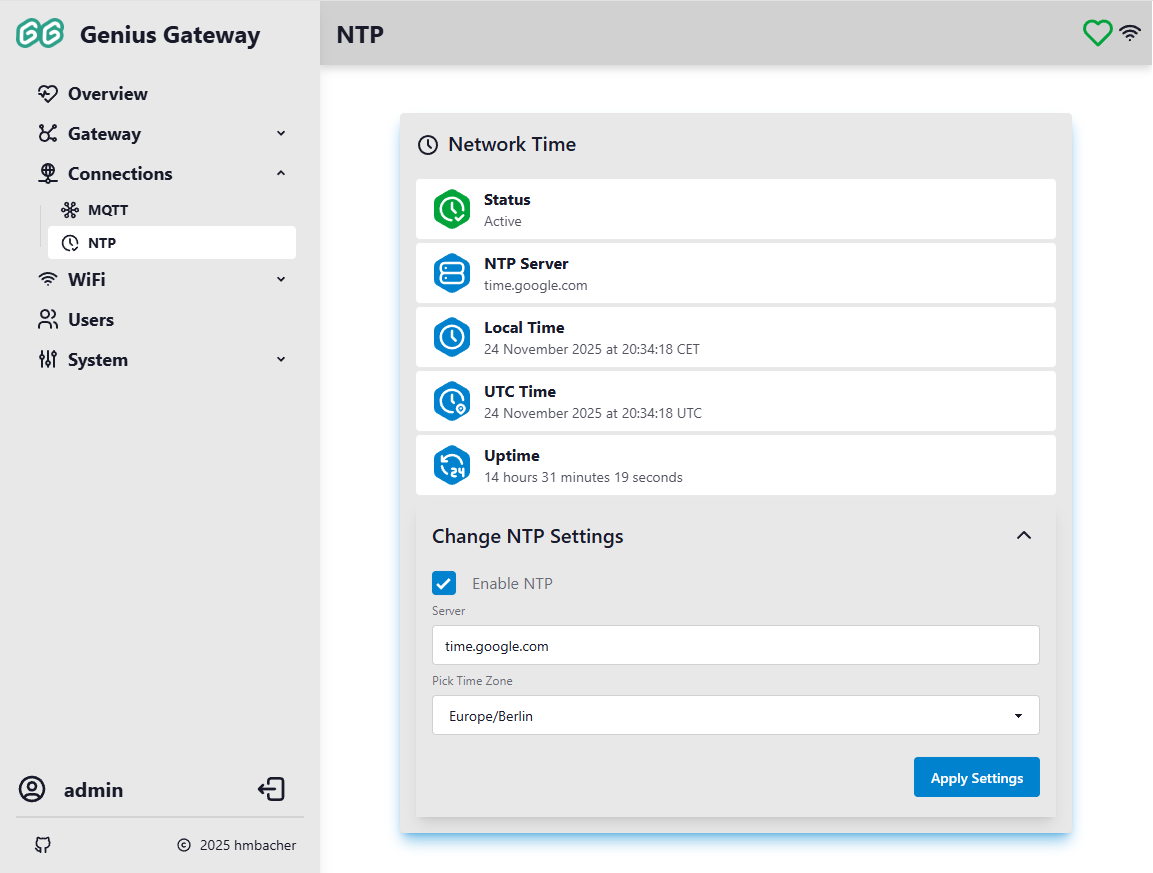
NTP Status
The status section displays various time synchronization information, updated every 5 seconds.
Change NTP Settings
Click the Change NTP Settings collapsible section to configure NTP parameters.
Administrator Access Required
NTP settings can only be modified by users with administrator privileges.
Enable NTP
Toggle checkbox to enable or disable NTP time synchronization.
Server
NTP server hostname or IPv4 address.
- Format: Valid domain name or IPv4 address (3-64 characters)
- Default:
pool.ntp.org(public NTP pool server)
Pick Time Zone
Select your local timezone from the dropdown list. The device uses this to convert UTC time to your local time.
Daylight Saving Time
The selected timezone automatically handles daylight saving time transitions where applicable.
Applying Changes
Click Apply Settings to save and apply the NTP configuration. The device will apply the new timezone and NTP server settings immediately and begin time synchronization.